The short version
- Install htmlhost from your editor's Extensions panel.
- Open the folder that holds your site.
- Click the htmlhost icon at the side of the window and choose Sign in.
- Click Deploy This Folder. Your link appears when the upload finishes.
After that the button reads Redeploy Site and updates the same address. The rest of this guide covers each step, drafts, pulling changes back, and what to do when something doesn't work.
What you need
- An editor. VS Code, or one built on it: Cursor, Windsurf, VSCodium and Antigravity.
- Node.js 18 or later. If you don't have it, install it from nodejs.org.
- A free htmlhost account. You can create one while signing in. The Free plan includes 3 sites that don't expire; see what each plan includes.
- A site. A folder with an
index.html, plus any CSS, JavaScript, images and other pages. No site yet? Start from a free HTML template.
Step 1: Install the extension
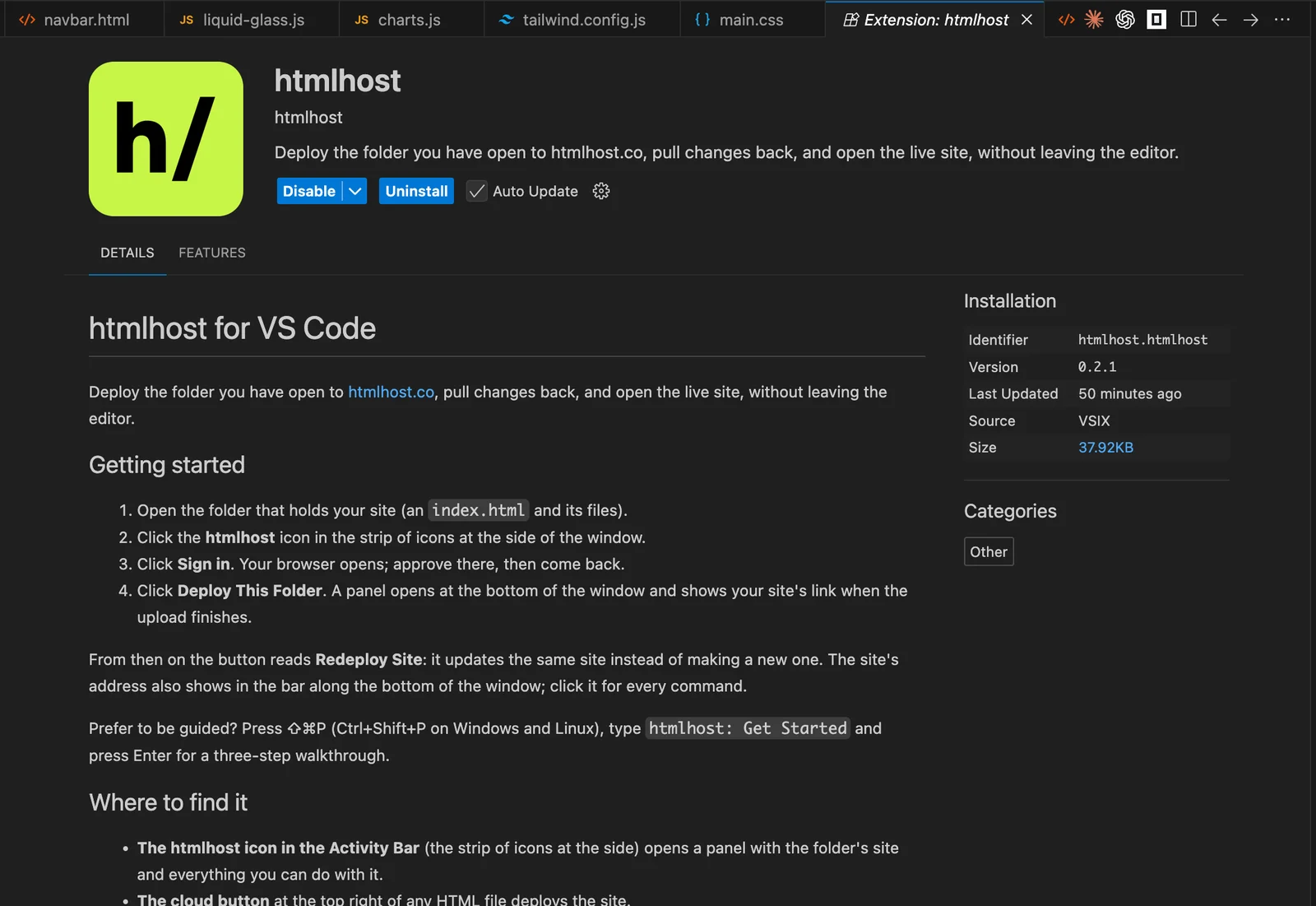
In VS Code
- Open the Extensions panel (the four-squares icon at the side, or
Ctrl+Shift+X;⇧⌘Xon a Mac). - Search for htmlhost.
- Choose Install.
Or open its page on the Visual Studio Marketplace and choose Install there. From a terminal:
code --install-extension htmlhost.htmlhostIn Cursor, Windsurf, VSCodium and Antigravity
These editors install from Open VSX, where the extension is listed under the same name. Search for htmlhost in the Extensions panel and install it. A new listing can take a little while to reach an editor's search.
Step 2: Sign in
- Click the htmlhost icon in the strip of icons at the side of the window.
- Choose Sign in. Your browser opens an htmlhost page asking whether this computer may use your account.
- Check the code matches the one in the editor, choose Approve, and come back.
You sign in once per computer. If you already use the htmlhost command-line tool there, you're signed in and can skip this step.
Step 3: Deploy your site
- Open the folder that holds your site (File → Open Folder). Open the site's own folder, not a parent folder with other projects in it: everything in the folder is uploaded.
- Click the htmlhost icon, then Deploy This Folder.
- A panel opens at the bottom of the window, lists the files it will upload and asks you to confirm.
- When it finishes, a notification shows your site's address with Open Site and Copy Link.
Unsaved files are saved first, so what you see in the editor is what goes online. The folder now remembers its site, and the site's address shows in the bar along the bottom of the window.
Update the site, or save a draft
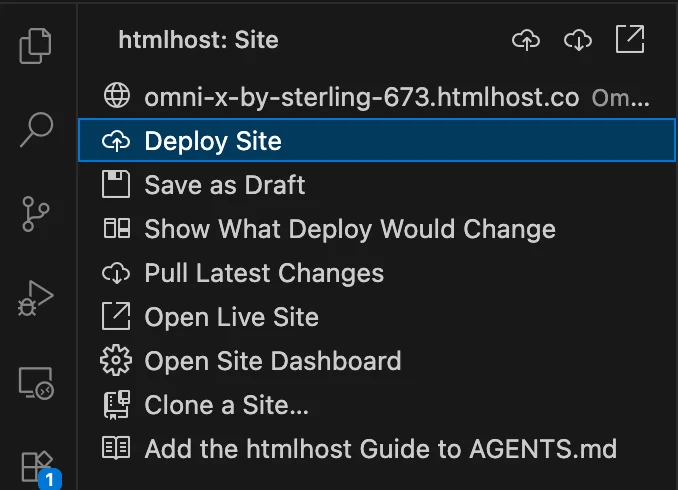
Edit your files, then click Redeploy Site. The same address is updated, and every deploy is recorded in the site's version history.
- Check first. Show What Deploy Would Change lists the files a deploy would add, change or remove. Nothing is sent.
- Not ready to go public? Save as Draft uploads the folder without changing what visitors see. Deploy when you're ready.
- A site you've unpublished or only saved as a draft is never made public by accident: you're asked to confirm in the panel at the bottom first.
Pull changes made in the browser
htmlhost also has a browser editor with AI editing. If you, a client or a teammate change the site there, choose Pull Latest Changes to bring those edits into your folder. A deploy checks for this too and offers to pull first, so local files never silently replace newer work. More in Sync and pull.
Work on a site you already have
Choose Clone a Site, pick the site from the list (your own, then ones shared with you) and choose where to put it. The extension downloads every page and file into a new folder and offers to open it. From there, edit and redeploy as above.
Every command, and where to find it
- Deploy Site. Publishes the folder to a new site. Once the folder has a site, it reads Redeploy Site and updates that site.
- Save as Draft. Uploads the folder without changing what visitors see.
- Show What Deploy Would Change. Lists the files a deploy would add, change or remove, without sending anything.
- Pull Latest Changes. Brings edits made in the htmlhost editor, or by a teammate, into the folder.
- Open Live Site. Opens the site in your browser.
- Open Site Dashboard. Opens the site's dashboard: forms, domains, analytics and settings.
- Clone a Site. Downloads one of your sites, or one shared with you, into a folder.
- Add the htmlhost Guide to AGENTS.md. Tells your AI coding tool how htmlhost sites work.
You can reach them from five places:
- The htmlhost icon at the side of the window opens the panel shown above.
- The cloud button at the top right of any open HTML file deploys the site.
- The bar along the bottom shows the site's address; click it for the command list.
- Right-click a folder or an HTML file in the Explorer and choose Deploy to htmlhost.
- The Command Palette (
Ctrl+Shift+P;⇧⌘Pon a Mac): typehtmlhost.
New to it? Run htmlhost: Get Started from the Command Palette for a three-step walkthrough inside the editor.
Use it with your AI coding tool
If you build with Copilot, Cursor, Claude Code or another assistant, choose Add the htmlhost Guide to AGENTS.md. It writes htmlhost's rules into your project (how forms deliver, how a shared header and footer stay in step, how drafts and publishing work), so the pages your assistant writes work when they go live. To let the assistant deploy for you, add the htmlhost MCP server as well.
After it's live
- Use your own domain. Connect a custom domain with HTTPS included.
- Collect messages. Forms work with no server code.
- Send old addresses to new ones. A
_redirectsfile in the folder is applied on deploy (redirects). - Take your files with you. Export the site and its form data at any time.
Troubleshooting
- “npx: command not found” in the panel at the bottom. Node.js isn't installed, or the editor was opened before it was. Install Node.js 18 or later and restart the editor.
- No htmlhost icon at the side. Reload the window (Command Palette →
Developer: Reload Window). If the side strip is full, the icon may be under its … overflow. - It wants to upload far too many files. You opened a parent folder. Open the site's own folder, or right-click that folder and choose Deploy to htmlhost.
- The page is live but has no styling or images. A file path is wrong, not the upload. See fixing missing CSS and images.
- “Not logged in”. Choose Sign In from the command list and approve in your browser.
- Prefer your own install of the command-line tool? Set
htmlhost.cliCommandtohtmlhostin Settings.
Other ways to publish
- From the terminal. The extension runs the htmlhost CLI; you can use it directly, in scripts and in CI. Walkthrough: how to deploy HTML code.
- From the browser. Paste HTML or drop a file, folder or ZIP on the homepage.
- From an AI chat. Connect htmlhost to Claude, or set up the MCP server for your coding tool.
- Reference. The extension in the documentation, and how htmlhost compares with other hosts.
Frequently asked questions
How do I deploy an HTML website from VS Code?
Install the htmlhost extension, open the folder that holds your site, click the htmlhost icon at the side of the window, sign in, then click Deploy This Folder. Your site's link appears when the upload finishes.
Is the htmlhost VS Code extension free?
Yes. The extension is free and works on htmlhost's Free plan, which includes 3 sites that don't expire. Pro adds unlimited sites, custom domains and more.
Does it work in Cursor, Windsurf and other VS Code-based editors?
Yes. The extension is listed on Open VSX, the store that Cursor, Windsurf, VSCodium and Antigravity install from, as well as on the Visual Studio Marketplace for VS Code itself. Search for htmlhost in the editor's Extensions panel.
Do I need Git or a GitHub repository?
No. The extension uploads the files in your folder directly. There is no repository to create, no build settings and no pipeline to configure.
Do I need to install anything else?
Node.js 18 or later, which most web developers already have. The extension runs htmlhost's command-line tool for you, so there is nothing else to install or keep updated.
How do I update a site I already deployed?
Edit your files and click Redeploy Site. The folder remembers which site it belongs to, so the same address is updated instead of a new site being made.
Can I upload changes without making them public?
Yes. Save as Draft uploads the folder without changing what visitors see. Deploy when you're ready to go live.
What happens to edits made in the htmlhost browser editor?
Pull Latest Changes brings them into your folder. A deploy also checks whether the site changed since you last synced and offers to pull first, so you don't overwrite someone else's work.
Can I deploy a single HTML file?
Yes. Right-click the file in the Explorer and choose Deploy to htmlhost. To publish a whole site with its CSS, JavaScript and images, deploy the folder instead.
Does it work with a framework such as React or Astro?
htmlhost serves static files, so deploy the folder your build produces (often dist or build), not the source folder. Right-click that folder in the Explorer and choose Deploy to htmlhost.
Can my team use it on a shared site?
Yes. Clone a Site lists sites shared with you as well as your own, and what you can do follows your role on the site. A Contributor can save drafts for someone else to publish.